
Ollama With VSCode
Something in full swing now wherever you work is probably ai. Everyone I talk to in my field is using AI daily to do their jobs. I enjoy being able to use code autocomplete or code generation, but prefer to use locally hosted if I can so I don’t have to pay money or worry about what the AI is pulling in for context. In this article we will be looking at how to connect VSCode to a local LLM for code auto complete or code generation.
Prerequisites
The following is needed to do this tutorial:
- Ollama installed on a local PC or the computer running VSCode
- Models downloaded on that Ollama to use. I am currently using the following models
- qwen-coder:32b - for autocomplete
- codellama - for chat, edit, and apply
- If you are running Ollama on another computer, you need to be able to access that computer over the network and have it configured to accept remote connections.
VSCode Extensions

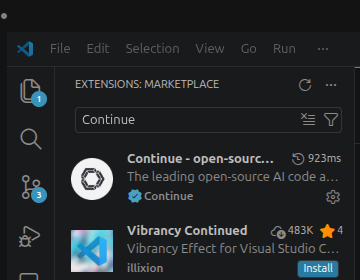
To start we need the Continue extension installed in VSCode. This extension will be the base of our AI setup. You can use it with any LLM, online or not. To install click on the Extensions Icon on the left side of the VSCode window.

Then search Continue and click Install.
Accessing Continue Configuration
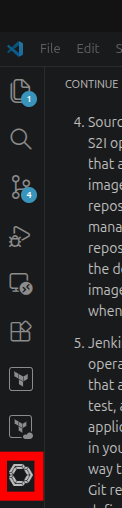
To access the Continue configuration click on the Continue Icon on the left side of the screen.
Then click on Local Config > Local Config Gear Icon
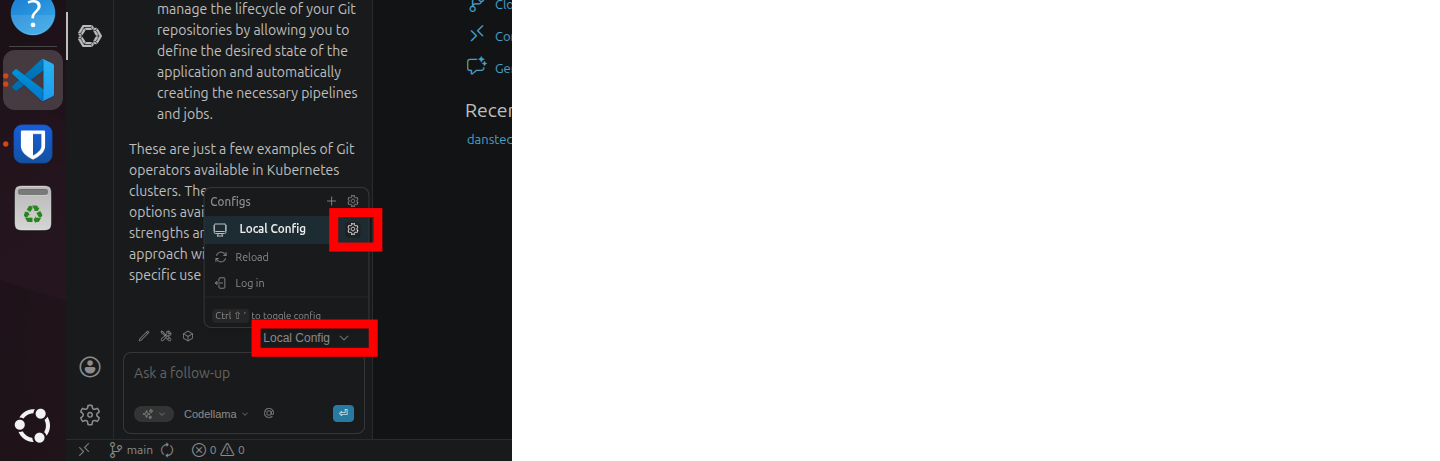
Continue Configuration Local
If you have a local Ollama installation running you can configure this with the following.
config.yaml:
name: Local Config
version: 1.0.0
schema: v1
models:
  - name: Llama 3.1 8B
    provider: ollama
    model: llama3.1:8b
    roles:
      - chat
      - edit
      - apply
  - name: Codellama
    provider: ollama
    model: codellama
    roles:
      - autocomplete
      - chat
      - edit
      - apply
This config can be adapted to match whatever models you have locally installed. In this example I’ve already downloaded llama3.1:8b and codellama, but you can use whatever you want here. Feel free to explore different Ollama models to see what works best for you!
Continue Config Remote
To connect to your remote Ollama instance you need to add one field in the config that specifies where to look for the running model.
name: Local Config
version: 1.0.0
schema: v1
models:
  - name: Llama 3.1 8B
    provider: ollama
    model: llama3.1:8b
    apiBase: http://100.87.185.12:11434
    roles:
      - chat
      - edit
      - apply
  - name: Codellama
    provider: ollama
    model: codellama
    apiBase: http://100.87.185.12:11434
    roles:
      - autocomplete
      - chat
      - edit
      - apply
Notice the apiBase field. The port should be the same but you will have to find the IP of your remote Ollama computer to reach it.
Bonus
Some things you will want to check on the Ollama machine to make sure you can reach it (as long as you are on the same network/the firewall will allow connection)
- Local Firewall will allow connection (ufw/windows firewall)
- Ollama settings expose ollama to the network